

Requirements
Before you can use 1Password to manage your SSH keys, you’ll need to:- Sign up for 1Password.
- Install and sign in to 1Password for Mac, Windows, or Linux.
- (Optional) Install 1Password CLI
2.20.0or later.
Generate an SSH key
Generate an SSH key in the 1Password desktop apps or with 1Password CLI to use anywhere you need one.- Desktop apps
- 1Password CLI
- Open and unlock the 1Password app, then navigate to your Personal, Private, or Employee vault in the sidebar.
- Select New Item, then select SSH Key.
- Select Add Private Key > Generate a New Key.
- Choose a key type, then select Generate.
- You can edit the name of your key and make any other changes. When you’re done, select Save.
Import an SSH key
If you have an SSH key you want to save in 1Password, you can import it.- Open and unlock the 1Password desktop app, then navigate to your Personal, Private, or Employee vault in the sidebar.
- Select New Item > SSH Key.
- Select Add Private Key > Import a Key File, then navigate to the location of the SSH key you want and select Import. You can also drag and drop your SSH key file directly into the new SSH item or paste it from your clipboard.
- If your SSH key is encrypted with a passphrase, enter the passphrase and select Decrypt. You’ll only need to enter the passphrase once. After you import the SSH key into 1Password, it’ll be encrypted according to the 1Password security model.
- When you’re done, select Save.
Is your passphrase saved in 1Password?If the passphrase for your SSH key is already saved in 1Password, use Quick Access to find and copy it without needing to switch context.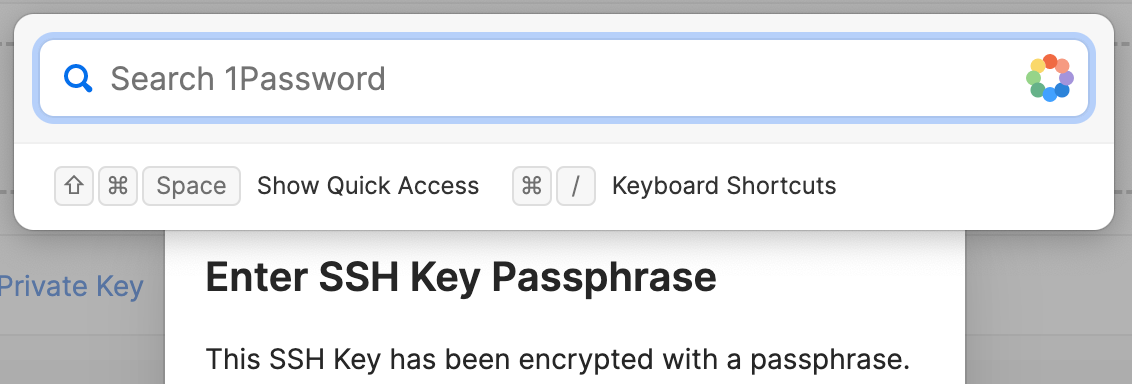
Key import errors
If you see one of the error messages below when you import an SSH key in 1Password, check if there’s an issue with the type of key, the file format, or the encryption:If you see a message that your SSH key isn't supported
If you see a message that your SSH key isn't supported
If you see a message that your SSH key isn’t supported, make sure you’re importing a supported Ed25519 or RSA (2048, 3072, or 4096-bit) key. Other key lengths and other key types, such as DSA or ECDSA keys, aren’t supported.To check the key type and bit length, run the following command:RSA keys also require a minimum public exponent of 65,537 to meet NIST standards. RSA keys with a public exponent less than 65,537 aren’t supported.
To check the size of the public exponent for your key, run the following command:
If you see a message that your SSH key file couldn't be read
If you see a message that your SSH key file couldn't be read
If you see a message that your SSH key file couldn’t be read, make sure the key file is in a supported format. 1Password supports PKCS#1, PKCS#8, and OpenSSH formats. Keys that use a different file format, such as PuTTYgen
.ppk, aren’t supported.If you see a message that your SSH key couldn't be decrypted
If you see a message that your SSH key couldn't be decrypted
If you see a message that your SSH key couldn’t be decrypted, it could be that it’s encrypted with an unsupported and outdated cipher such as RC4. You can re-encrypt your key file so that it uses a more modern algorithm and then try importing it again. To do this, run the following command:
View available SSH keys
In the 1Password desktop app, select Developer in the sidebar, then select View SSH agent. The Available SSH Keys list shows SSH keys you’ve saved in 1Password that are available to use with the SSH agent.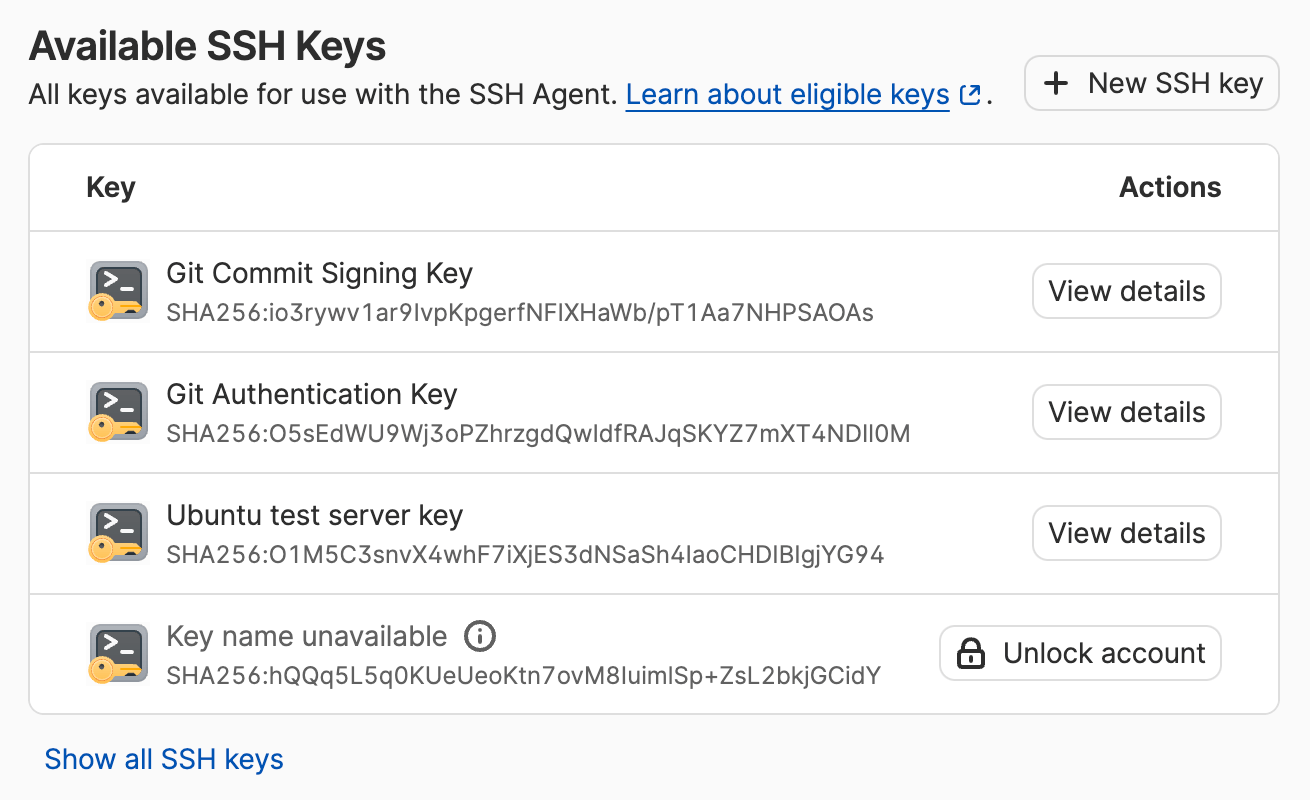
Track SSH Agent activity
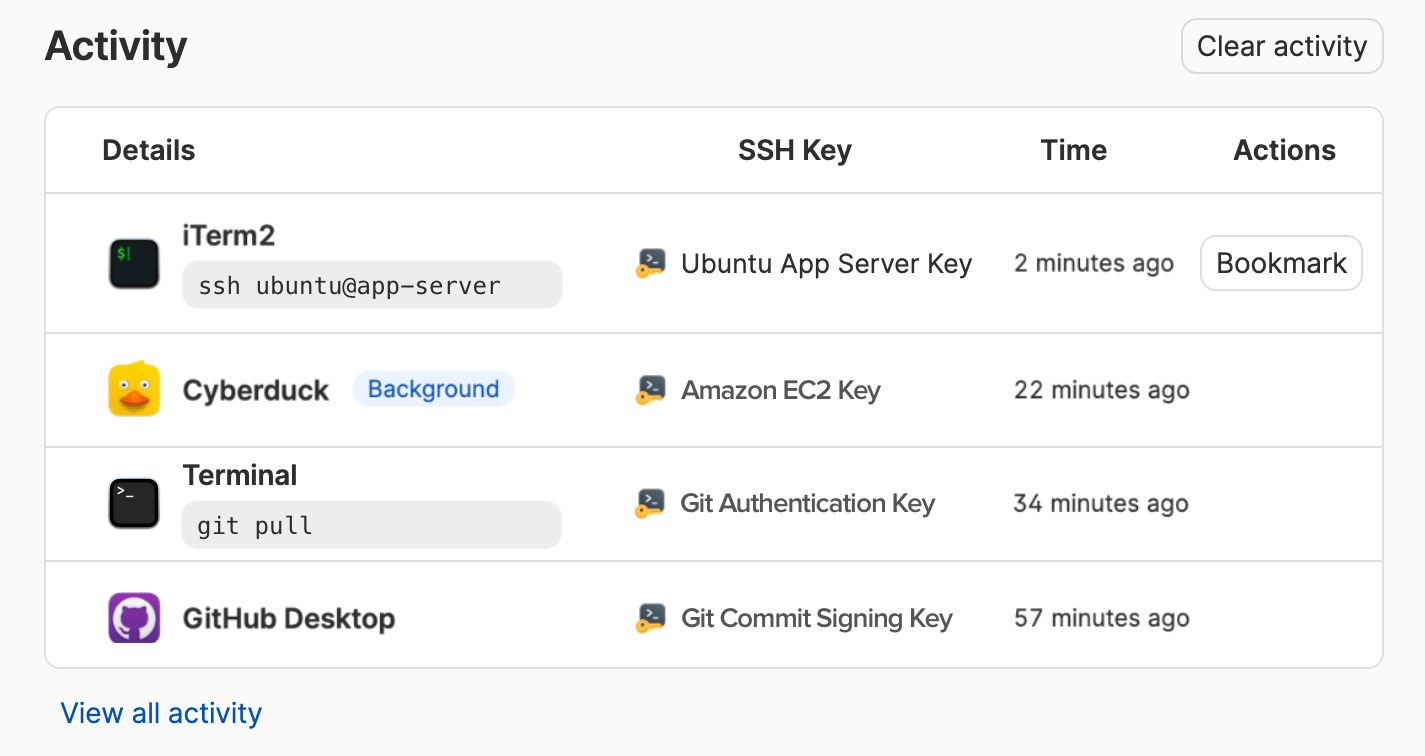
You can track SSH and Git activity authenticated with the 1Password SSH Agent, including the command, when it was run, requests made from apps running in the background, and the SSH key that was used.To see your 1Password SSH Agent activity log:
- Open and unlock the 1Password desktop app.
- Select Developer in the sidebar.
- Select View SSH Agent, then select the Activity tab.
Export an SSH key
You can export a private SSH key from 1Password at any time.- Open and unlock the 1Password desktop app.
- Choose the SSH key you want to export, then select the private key field.
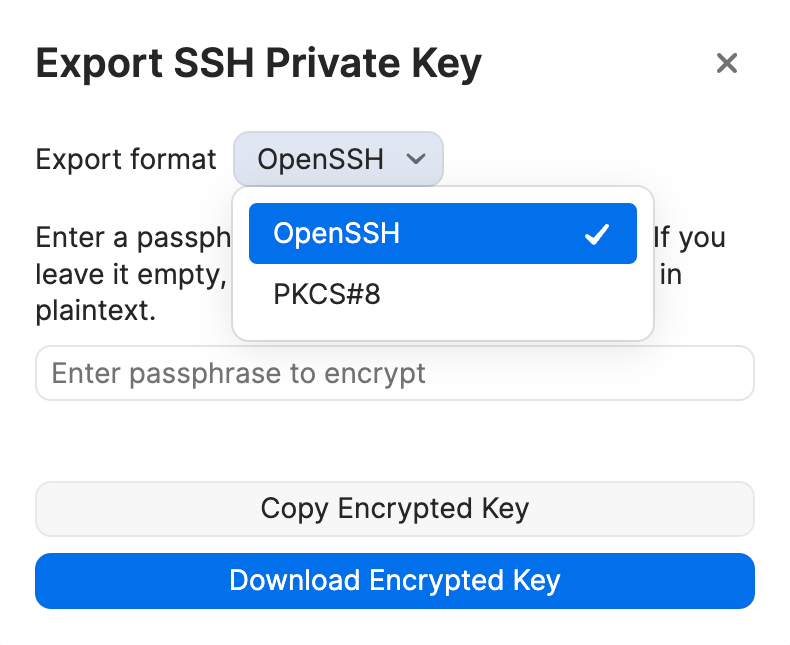
- Choose the export format you need: OpenSSH or PKCS#8. If you imported a PKCS#1-formatted key into 1Password, you will also have the option to export that key in PKCS#1 format.
-
Choose how you want to export your private key:
- To encrypt your exported private key (OpenSSH format only), enter a passphrase, then select Copy Encrypted Key or Download Encrypted Key.
- To export your private key in plaintext, leave the passphrase field empty (if there is one), then select Copy Unencrypted Key or Download Unencrypted Key.
Share a public key
1Password will automatically generate the public key and fingerprint for each private key you create so you can share it with the services and people who need it.You can copy or download the public key of an SSH key in the right format every time, and you can use the fingerprint to compare and identify your keys across all your services.
For platforms that let you provide public keys in the browser (often found in an SSH Key settings panel), you can use 1Password in your browser to fill your public key.
You can also copy your public key from the item view in 1Password and share it where needed, or use Quick Access to find your public key even faster without needing to switch context.
Supported SSH key types
1Password supports the following key types, formats, and encryption algorithms:- Key types: Ed25519 and RSA (2048, 3072, and 4096-bit)
- Formats: PKCS#1, PKCS#8, and OpenSSH
- Encryption: AES and 3DES (all supported key formats), and ChaCha20-Poly1305 (OpenSSH format only)